Blocktomic — User Guide
Blocktomic is an offline-first workout timer and tracker for interval training (Tabata, HIIT, endurance and strength). No account, no registration: your workouts, sessions and profile are stored locally on your device.
🇮🇹 Guida in italiano: USER_GUIDE.it.html
1. Quick start
-
Open Blocktomic → the onboarding appears on first launch:
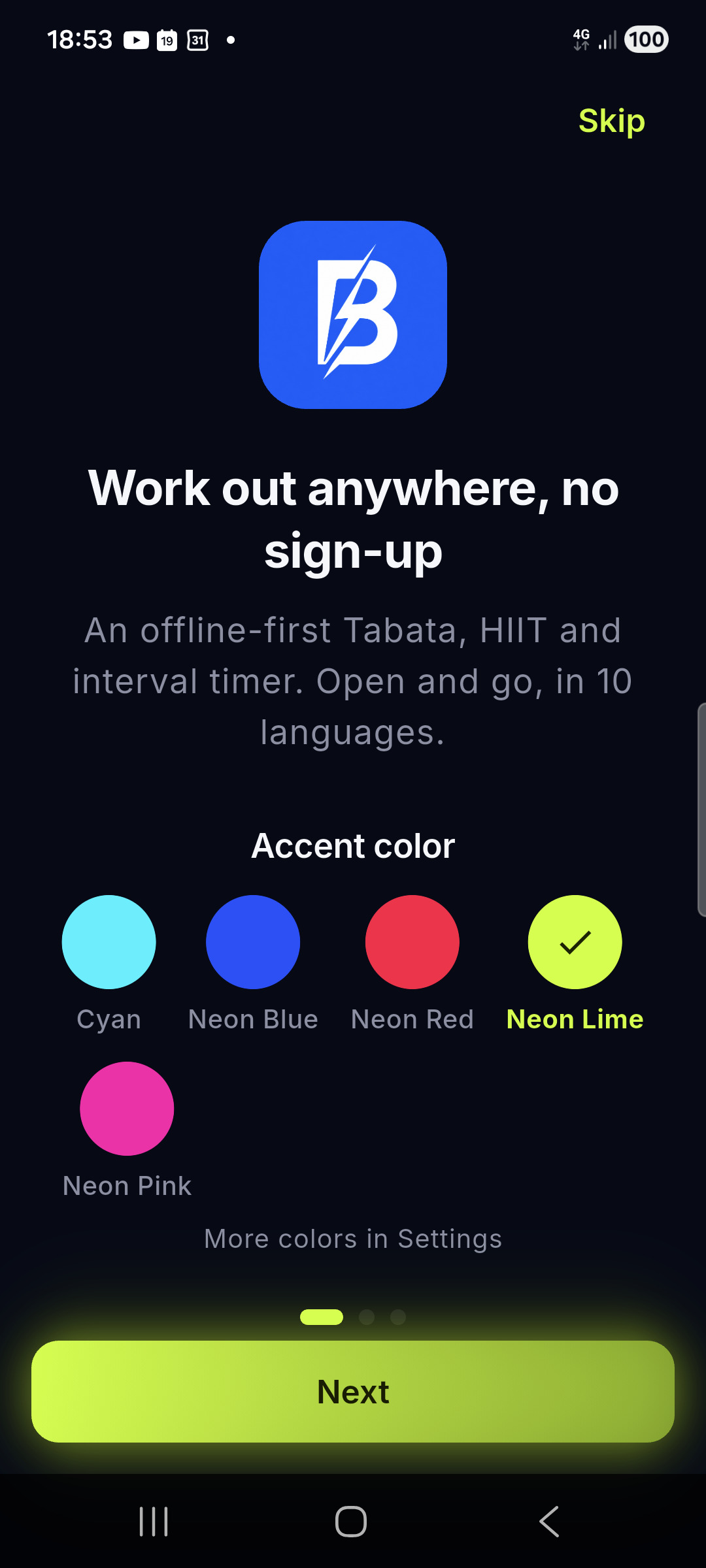
- Welcome — a quick intro to the app, plus an accent color picker (five shades shown here; all nine are available later in Settings).
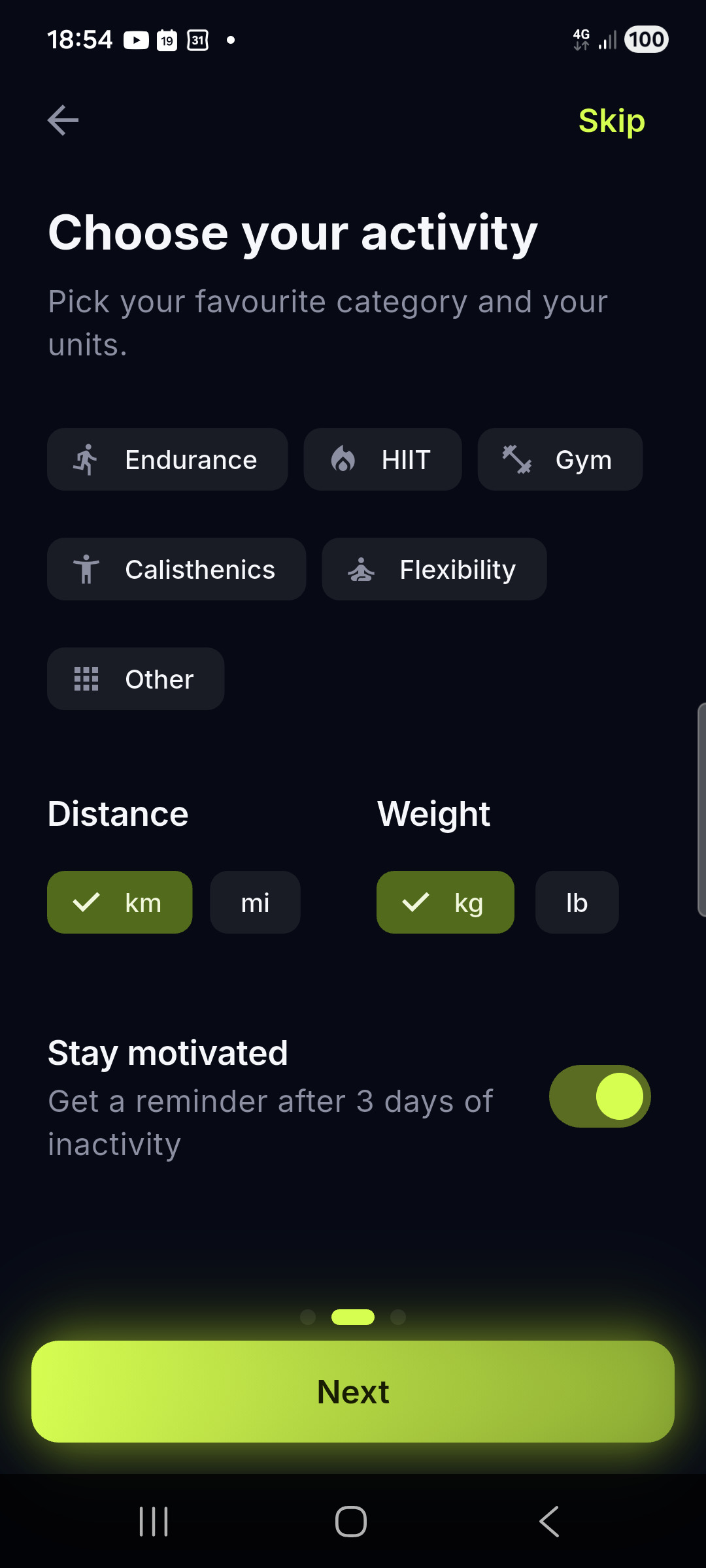
- Preferences — pick your preferred activity family, distance/weight units, and decide whether to enable retention notifications (gentle reminders to train — on by default).
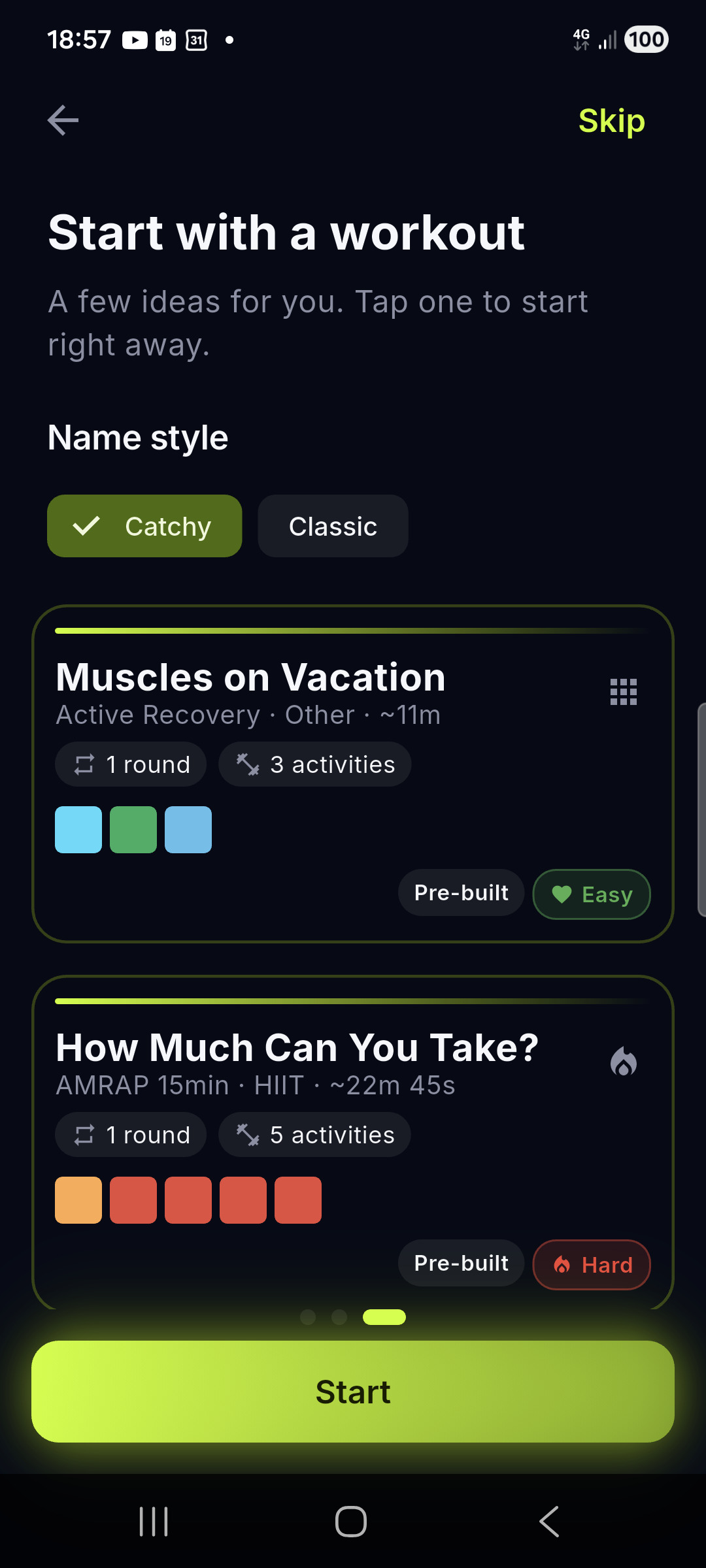
- Suggestions — choose your name style (Catchy or Classic) with a live preview on real workout cards, and start one right away if you like.
Tap Skip to go straight to the Home screen.
- On the Home screen you see three actions: Train now (starts the last/prebuilt workout), Continue last (repeats your last completed workout), Recommended today (a deterministic suggestion based on your preferred activity).
- Open the Workouts library → tap a pre-built workout card (e.g. Classic Tabata, HIIT 30/30, Run with Repeats) — or create your own.
- A short countdown (default 5 seconds) lets you get ready: tap Skip to start now, or Cancel to go back.
- Follow the intervals. At the end, rate the session (😊 😐 😰) and see your results.
That’s it — a workout starts in two taps, no account needed.
2. Home
The Home screen is your new entry point. It shows:
- Greeting — a personalized greeting if you’ve set your name.
- Goal strip — a horizontal row of selectable goal tiles (Fat loss, Strength & muscle, Endurance, Mobility & posture) plus a “No goal” tile. Tap to select a goal; tap the selected goal again (or long-press) to open its detail screen.
- Focus strip — horizontal ChoiceChips for Full body, Arms & shoulders, Core, Legs, Glutes and Back. Tap to toggle; tap again to deselect. When a focus is selected, a **“Workouts:
"** button appears to jump straight to a filtered library. - Primary workout card — a gradient card with the recommended workout, driven by your selected goal/focus (or today’s suggestion). Tap it to start.
- Continue last — repeats your last completed workout (shown only when it differs from the recommended one).
- Top muscle — shows the muscle you trained most in the last 7 days; tap to open the trend screen (only while you have recent data).
Your goal and focus selections are used to recommend workouts and to pre-filter the library.
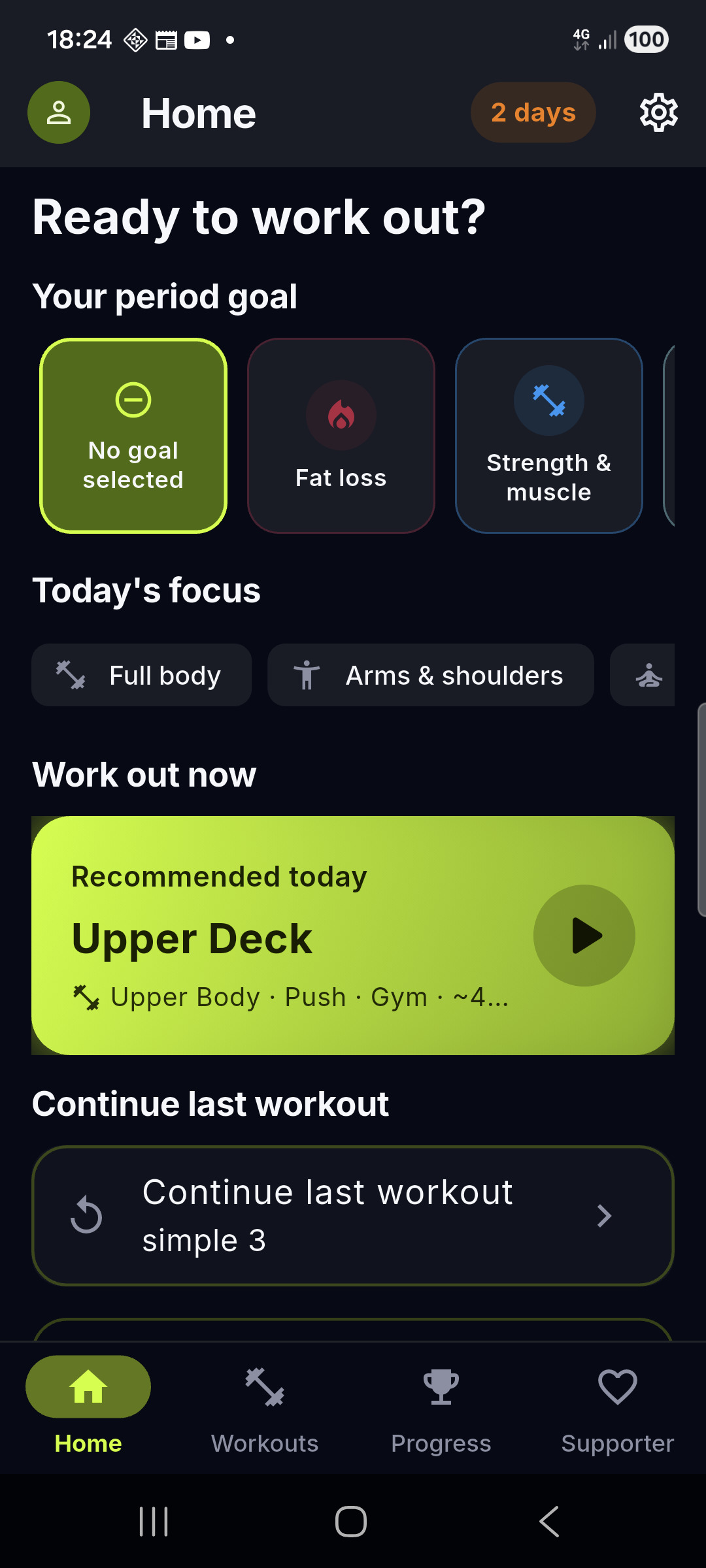
Top bar icons:
- Avatar → opens Profile.
- Streak chip (when active) → shows your current streak.
- Gear → opens Settings (no longer a bottom tab).
3. The main tabs
The bottom navigation has 4 tabs:
| Tab | What it does |
|---|---|
| Home | Goals, focus areas, recommended/primary workout and quick actions |
| Workouts | Your library: recent, custom and pre-built workouts |
| Progress | Streaks, badges, totals, trend chart, heatmap and muscle distribution |
| Supporter | Optional way to support development (watch ad or donate) |
Settings is no longer a bottom tab; open it via the gear icon in the top bar on Home.
Back button: from any other tab, the system back button takes you back to Home. From Home, press it twice within two seconds to exit — a confirmation message appears after the first press.
4. The library
The Workouts tab has two sub-tabs: Recent and Workouts.
- Recent — the workouts you used most recently, grouped with a “How it went” recap of your last sessions. Each card expands to show up to three recent sessions. Interrupted sessions appear here too (as long as at least one block was recorded), marked with a red ✕ instead of the green ✓.
- Workouts — all your workouts (custom and pre-built), with an expandable filters panel above the list.
The filters panel lets you narrow the list by:
- Type — All, Goal (matches your current goal), Pre-built or Custom.
- Focus — All, or a specific focus area (Full body, Arms & shoulders, Core, Legs, Glutes, Back).
- Family — Endurance, HIIT, Gym, Calisthenics, Flexibility or Other.
- New — a switch to show only newly distributed pre-built workouts.
A counter in the filters header shows how many workouts match. Custom workouts are sorted by how often you use them (most used first).
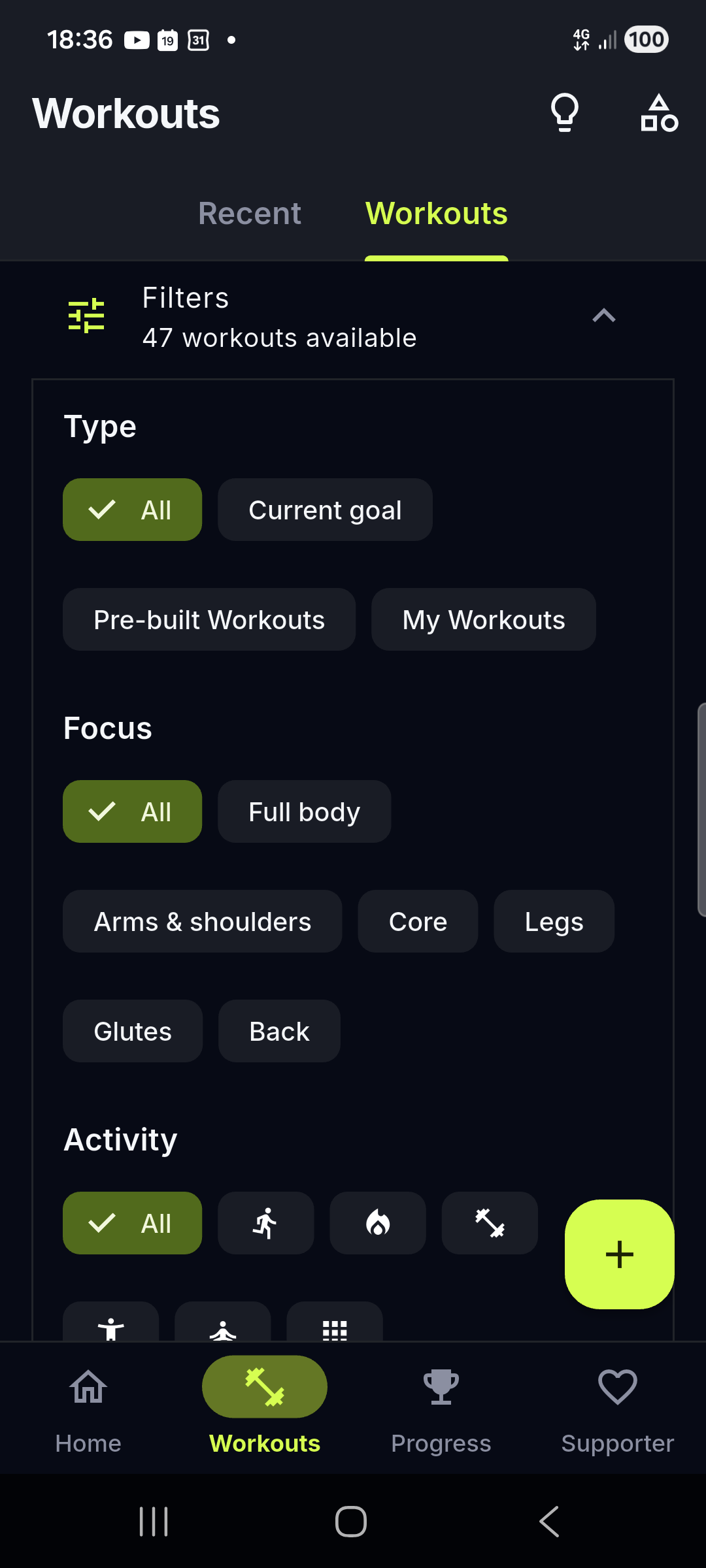
Starting a workout: tap a card. From a workout’s preview screen you can also tap the play button to start it right away. A 🔥 flame on a card means you used that workout at least 3 times.
Card titles: pre-built workouts have two names — a classic one (Classic Tabata) and a catchy one (Phoenix Protocol). With fun names on (default) cards lead with the catchy title and show the classic name plus an info line underneath (Family · estimated duration, or the planned distance for running workouts); with fun names off you get the classic name and the same info line. Switch style from the last onboarding page or Settings → Fun workout names. Duplicating a pre-built workout keeps its catchy title and difficulty.
The choice applies to saved sessions too: the timer header, history, trend chart and session details all show localized fun or classic titles depending on the toggle.
💡 Auto-generated names follow your language: if you change the app language, default block names (Warm-up, Rest, “Activity N”, sport names) auto-translate. Your custom names never change.
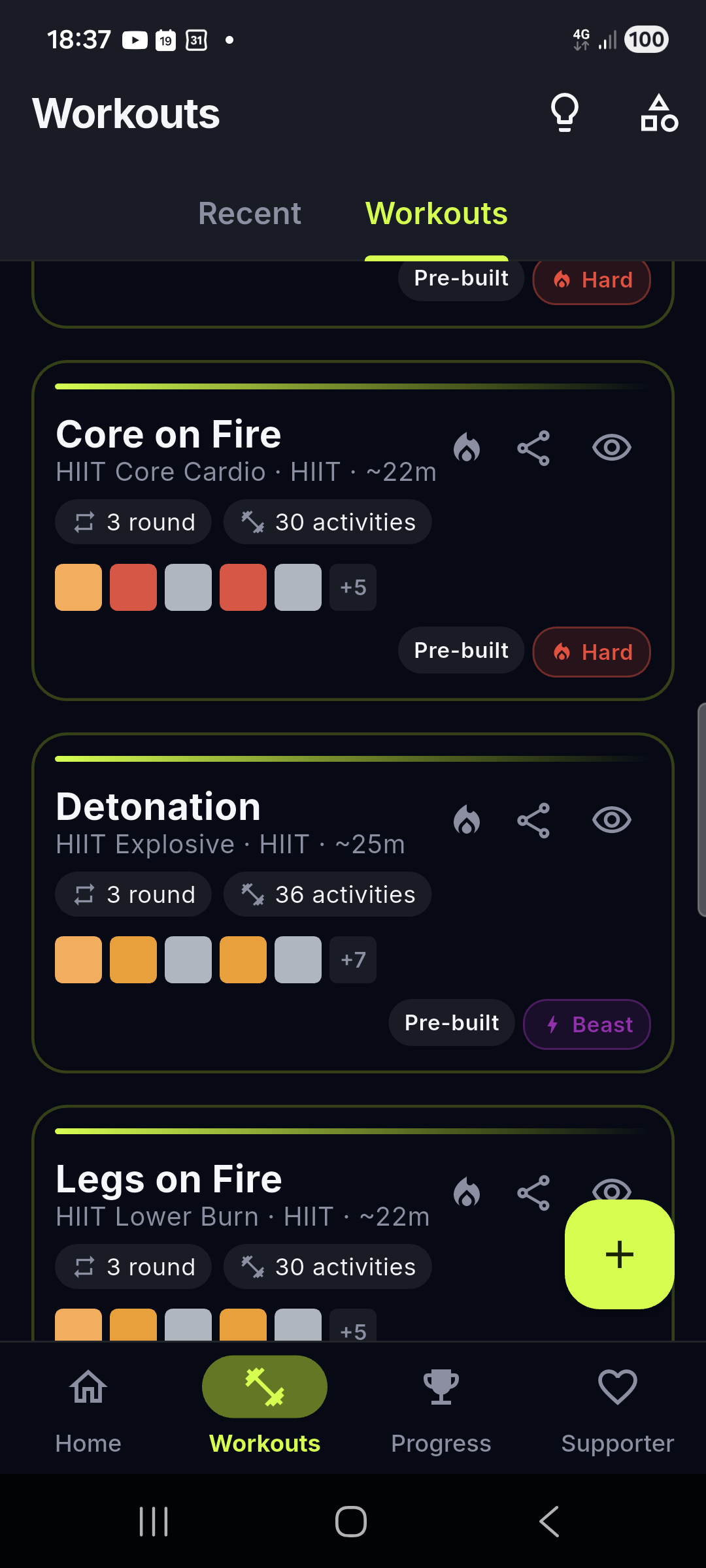
Difficulty: every pre-built card shows a difficulty chip — Easy, Intermediate, Hard or Beast (custom workouts don’t have a difficulty level).
New workouts available: when new pre-built workouts are distributed to the app, a banner appears at the top of the Workouts tab. Tap it to filter to the new ones, or dismiss it when you’ve seen them.
5. During a workout
- The plan is always: warm-up → core (repeated N rounds, with optional rest between rounds) → cool-down.
- Pause / Resume freezes the timer (GPS tracking also pauses).
- Stop ends the session (always asks for confirmation); pressing back during a session asks for confirmation too.
- Beeps and vibration signal phase changes — both can be turned off in Settings.
- Voice coach (optional, opt-in) — 🚧 Coming soon, not in the current release. When it ships you’ll enable it in Settings → Audio → Voice coach (off by default) and a short announcement will play between the
T-1beep and theGObeep, e.g.“Next: Burpees! 3, 2, 1, go go go!”. With Fun workout names on (default,Settings → Workout → Fun workout names) pre-built workouts use their catchy title (“Phoenix Protocol”, “Burpee Storm”); otherwise the classic name is spoken. If the voice is off or unavailable you still get the beeps.
Distance and GPS
- For distance intervals on running, cycling, etc., Blocktomic uses GPS to measure the kilometers you cover.
- You see live distance vs. target, a progress bar, elapsed time and speed. The interval completes automatically when you reach the target.
- If GPS is off or permission is missing, the app explains why and offers “Continue without GPS” (manual entry) — nothing is ever sent to a server.
- The first time you start a GPS workout, a permission screen explains exactly what the app uses your location for.
Manual distance (e.g. swimming)
Sports that don’t support GPS (like swimming) let you type the distance on a stopwatch screen when the interval starts.
Feedback
After a block you can rate how it felt:
- 😊 Easy (green)
- 😐 Normal (blue)
- 😰 Hard (orange)
- ❌ Not completed (red)
For strength exercises you can also record the weight and reps. This feedback feeds your badges and the “Last feedback” shown in previews.
The rating panel stays on screen for the whole rest pause — take your time: your choice stays highlighted with a ✓ and nothing closes automatically.
Hands-free Rate (Supporter) — 🚧 Coming soon, not in the current release. When it ships, and while your Supporter badge is active (unlocked by watching an ad for 15 days / 30 workouts or donating for 30 days, see Supporter tab), you’ll be able to rate without touching the screen: just say “easy” / “normal” / “hard” / “not done” (and the 10-language equivalents:
facile/normale/duro…) and the app confirms with a short voice cue (“Easy, logged!”). Without Supporter the manual Rate button is always available; tapping the mic icon shows an upsell to the Supporter tab. The mic will be active only during a workout and never leaves the device.
6. Creating and editing workouts
From the library, tap the + button.
- Name the workout.
- Set the rounds (how many times the core sequence repeats) and optional rest between rounds.
- Add intervals (blocks) in order. Each block has:
- a sport/activity (chosen from the catalog or quick-add buttons),
- a type: Time, Distance, Reps or Open,
- duration / distance / reps, and optional sets, rest between sets, weight and rest after,
- an “Ask feedback” toggle (on by default).
- Blocks can be warm-up, cool-down, rest (an explicit pause) or workout.
- Reorder blocks with a long-press drag; the cool-down always stays last.
The workout family (Endurance, HIIT, …) is derived automatically from its blocks and used for filtering.
A new workout starts pre-seeded with a 5-minute warm-up and 5-minute cool-down — replace or delete them to fit your plan.
7. Managing activities (sports)
Open the activities manager from the library app bar icon (categories icon).
- Browse the default catalog (134 activities) with search and family filters.
- Add your own activity: give it a name, pick an icon, decide if it supports distance / GPS, choose its families and a color.
- Default activities are locked (to keep the app reliable); activities you create can be renamed or deleted at any time.
- When new activities are distributed to the app, a banner appears here.
8. Sharing a workout
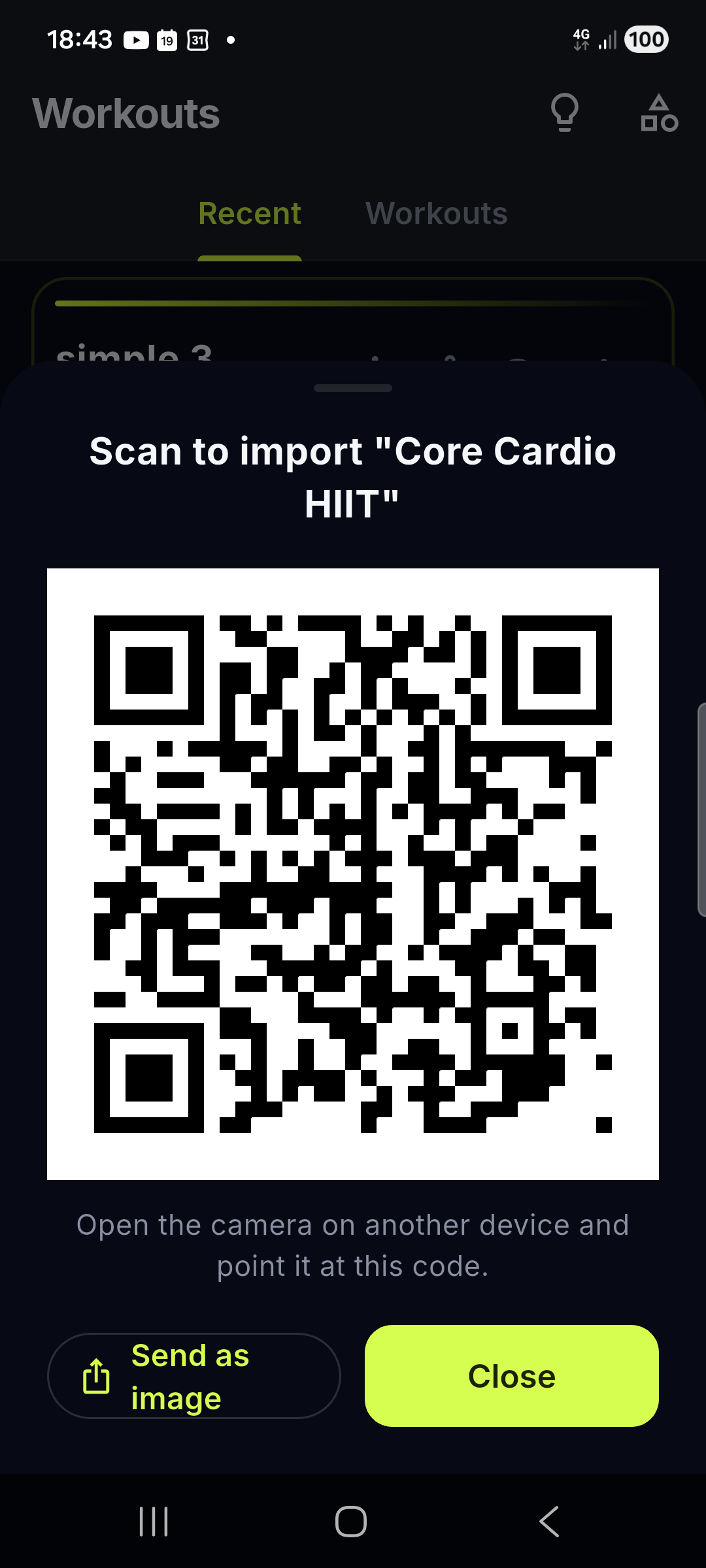
Any workout card has a share button. Tapping it opens a sheet with:
- A QR code — point another phone’s camera at it to open the same workout. Perfect for sharing in person, no messaging app needed. You can also share or save the QR image directly.
- A link you can send with any app.
Blocktomic always picks the best link available:
- Online: the workout is published anonymously and you get a short link to share.
- Offline (or if publishing fails): the full workout is encoded inside the link itself — sharing still works with no connection.
Opening the link (or scanning the QR) shows a preview → “Add to my library” saves a copy locally. No account needed.
Privacy note: a shared workout contains only its structure (blocks, times, distances). When you share while online, that structure is stored anonymously on Google Cloud Firestore so the short link keeps working; nothing else is attached to it. See PRIVACY_POLICY.html.
9. Profile, progress and badges
- Profile (from Settings, tap your card): photo, name, weight, height and birth date. Weight display follows the unit you chose (kg/lb).
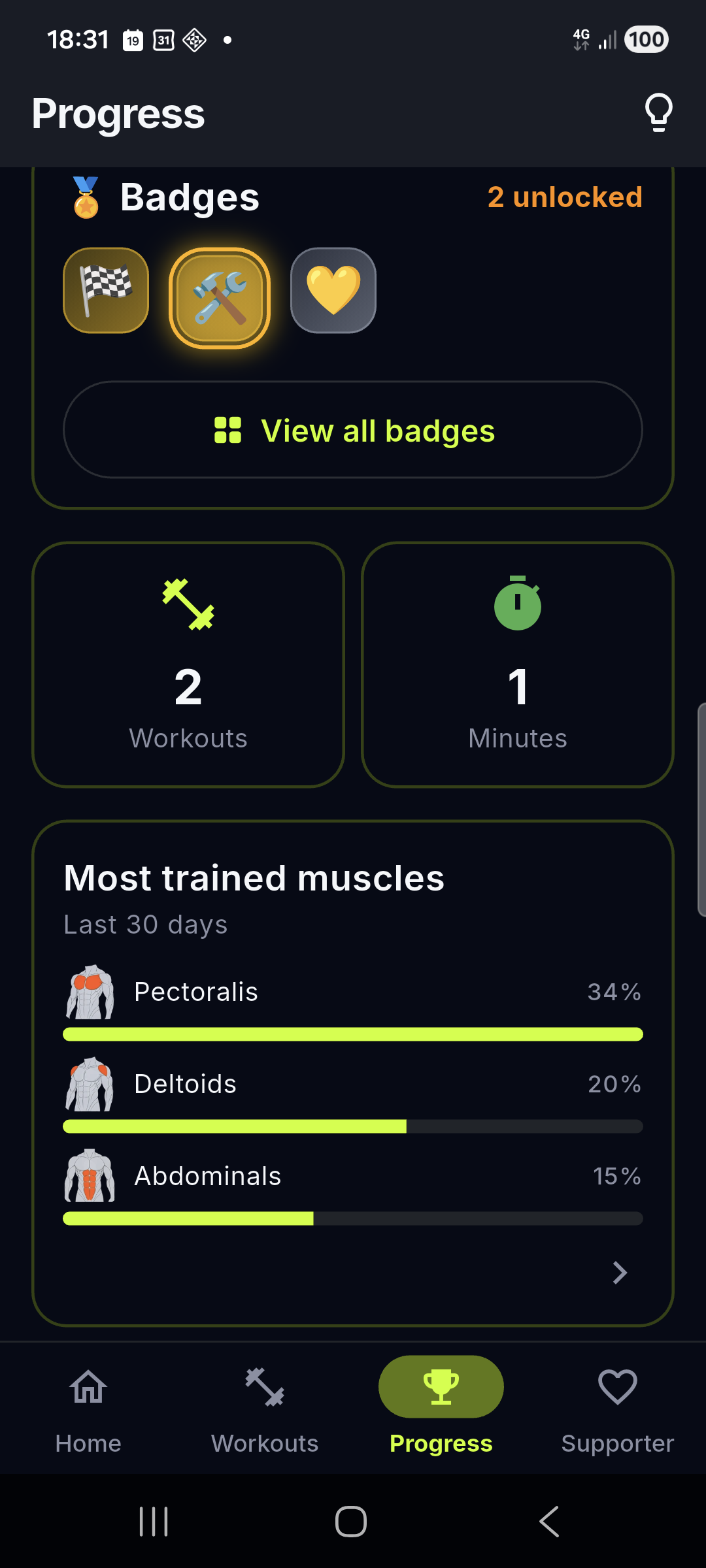
- Progress tab:
- Streak — consecutive days trained, plus your longest streak (shown as a big gradient card when active).
- Badges — collection of achievements (first workout, streaks, volume, quality, exploration, milestone, supporter). Tap a badge to see how to unlock it.
- Totals — workouts completed and total minutes.
- Muscle distribution — your most-worked muscles (top 3) over the last 30 days; tap to open the trend screen.
- Trend — chart of your training over time (see below).
- Heatmap — calendar view of your activity; tap a day to see that day’s sessions.
Trend
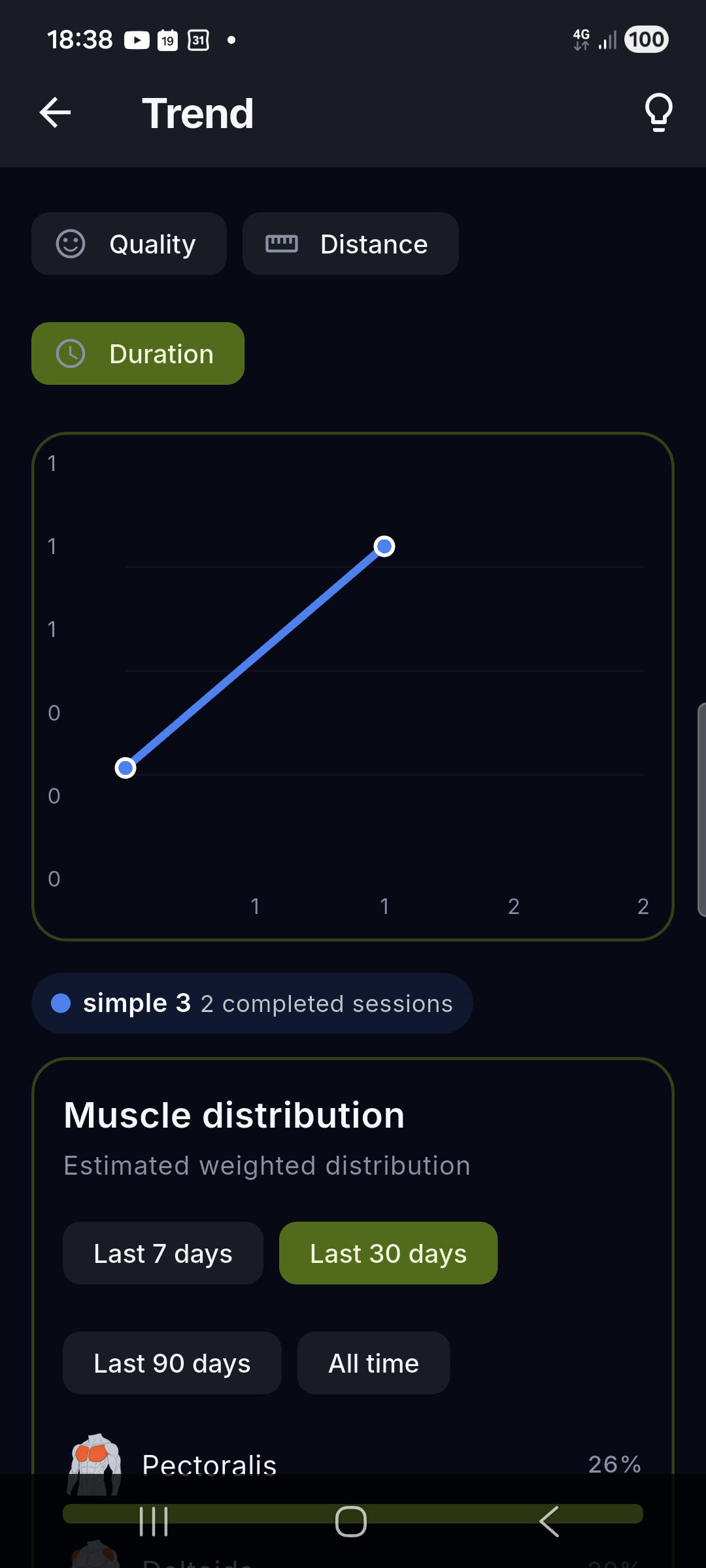
The Trend screen shows how each workout evolves over time:
- Pick the metric: Quality, Distance or Duration.
- Each completed session adds a point to that workout’s line; tap a legend entry to highlight a workout.
- Below the chart, every workout card shows its average and best result with the latest direction: ↑ better, ↓ worse, → stable.
History
Sessions are browsed in a weekly window you can move back and forth (a few days at a time). Tap any session for the full detail:
- Title (fun or classic name, following your setting), date and time
- Duration, total distance and average speed
- Overall ⭐ rating and whether the session was completed or interrupted
- Per-block feedback votes and badges earned
- Delete button to remove the session
Heatmap
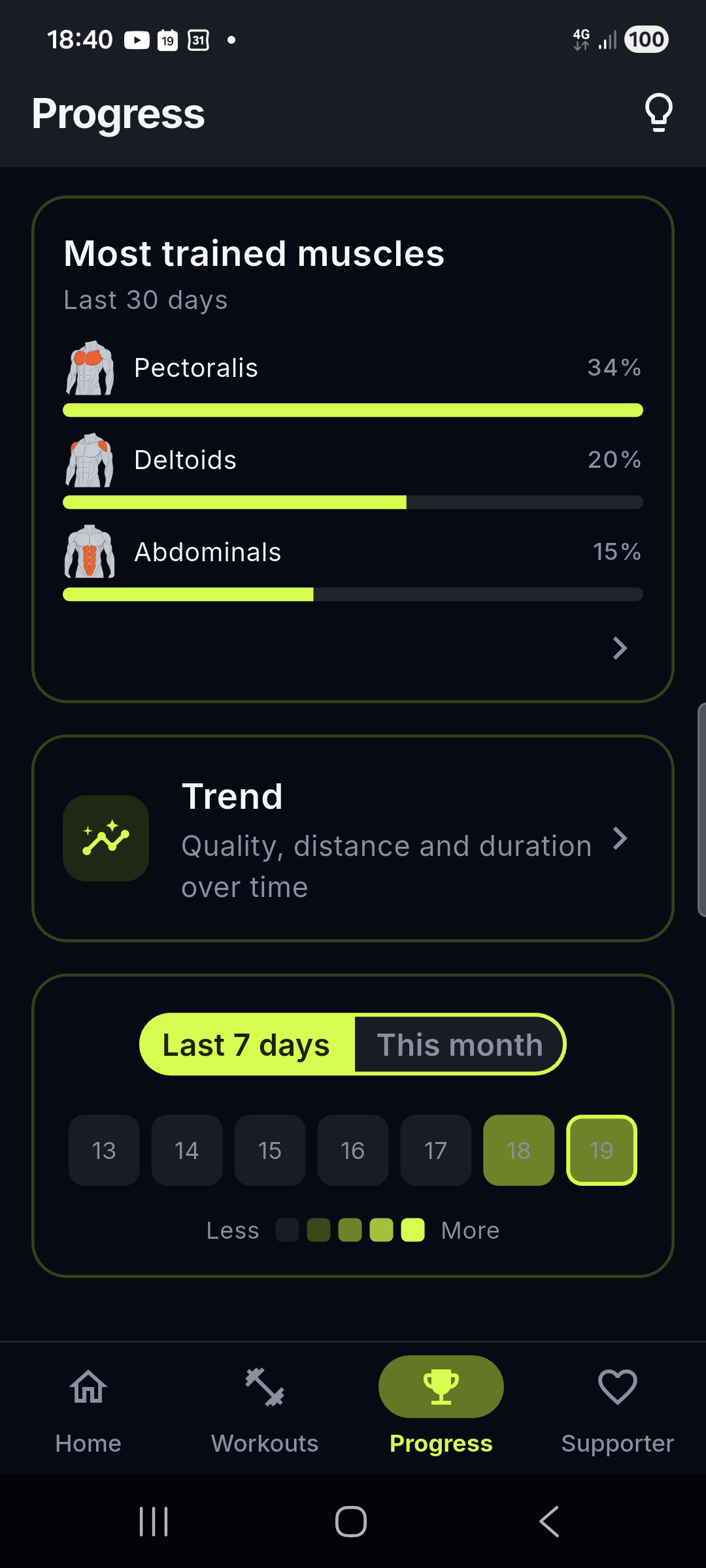
The calendar colors each day on five intensity levels combining how many sessions you completed and how good they felt (average feedback). Switch between last 7 days and current month, then tap a day to open its sessions.
10. Supporter (optional)
The Supporter tab is a voluntary way to support development:
- Watch an ad → the supporter badge activates for 15 days or 30 workouts.
- Donate → the badge activates for 30 days.
The badge also appears in your badge collection. A gentle weekly reminder is shown only while the badge is inactive; no ads are ever forced.
11. Settings
| Section | What you can change |
|---|---|
| Audio | Sound on/off |
| Vibration | Vibration on/off |
| Units | Distance (km/mi) and weight (kg/lb) — display only |
| Preferred activity | Your favourite family (Endurance, HIIT, Gym…) or no preference; it drives the workout suggestions on Home |
| Start delay | Countdown before the timer starts (0–15 s) |
| Language | System default or one of 11 languages |
| Theme | Theme mode (system/light/dark), accent color (9 options; Cyan default, plus Green, Orange, Violet, Fuchsia, Neon Red, Neon Pink, Neon Lime, Neon Blue), screen rotation toggle |
| Style | Visual style (Athletic default, plus Classic, Vibrant, Overdrive) |
| Workout | Fun workout names on/off (catchy titles on cards, on by default) |
| Privacy | “Share anonymous usage data” toggle |
| Notifications | Retention notifications on/off (gentle reminders to train) |
| About | About, Legal and Contact Us pages |
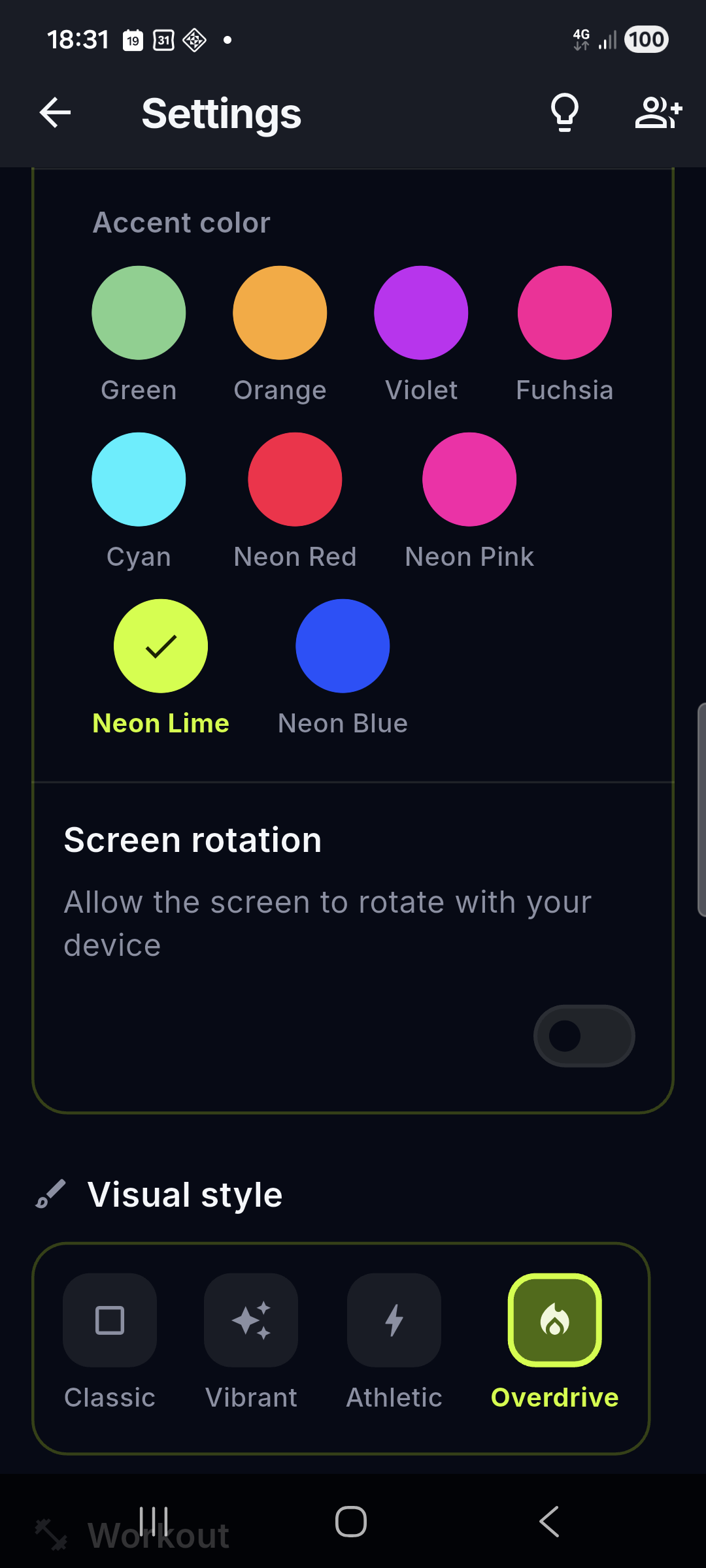
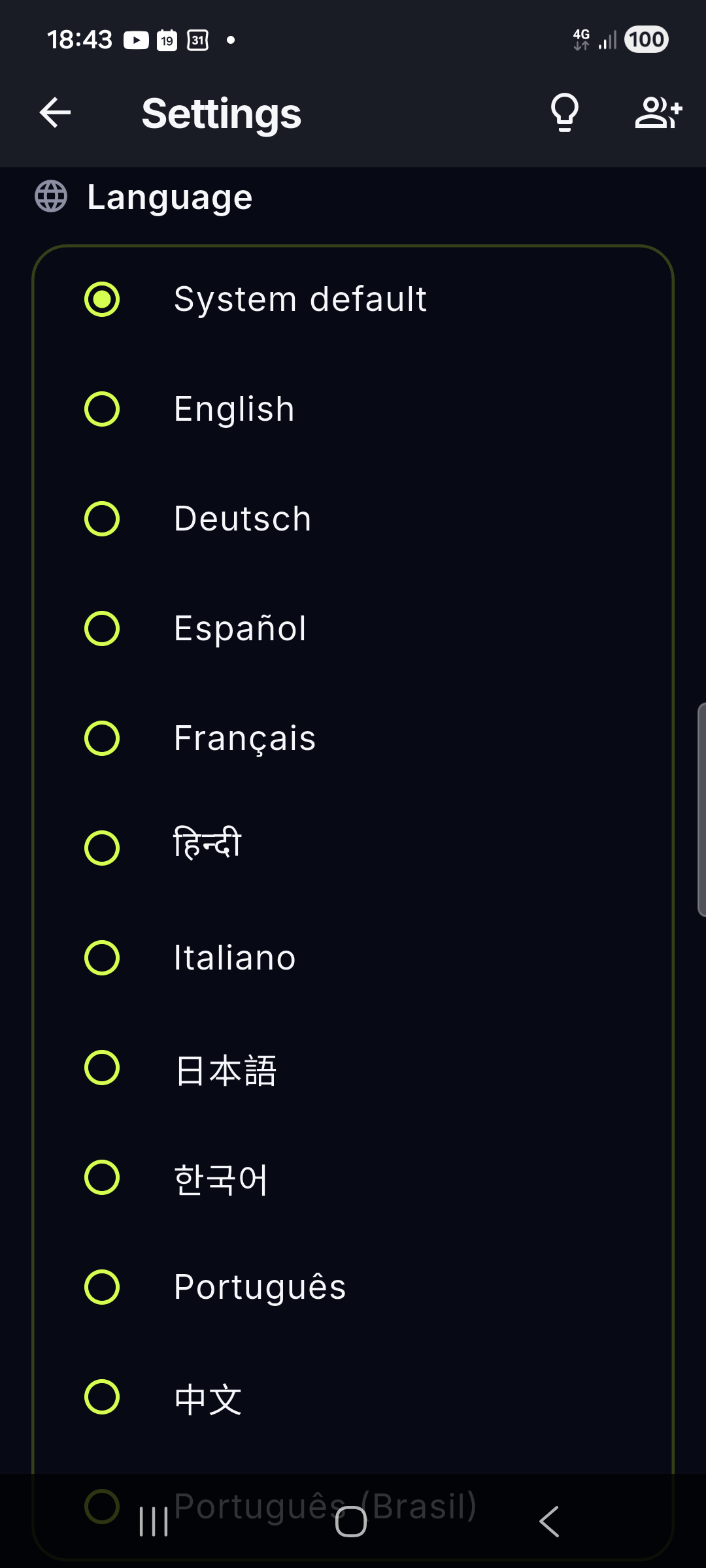
At the top of Settings you’ll also find an Invite a friend button (sends a download link with any app) and your profile card (photo, name, weight and height — tap to edit, including birth date). At the bottom: About, Legal and Contact Us pages and the app version.
12. Feedback & ideas
Tap the 💡 icon in the top bar — it’s available on many screens, including Settings and the Support tab — to open Feedback & Ideas:
- Vote on future features: see what’s planned — Cloud Backup, Custom Sounds, Pace Targets, Voice Coach, Home Screen Widget, Health App Sync, GPS Route Map, Round Groups — and vote for what matters most.
- Suggest your own idea: write a short proposal (max 500 characters).
Votes and proposals are stored anonymously on Firebase and require the optional analytics consent; if you haven’t given it yet, the app shows a banner linking to Settings → Privacy.
13. Privacy & data
- All your workouts, sessions and profile data are stored only on your device.
- GPS is used only during active workouts, never saved as routes and never sent anywhere.
- Optional anonymous statistics (usage events + crash reports) are sent to Firebase only if you give consent (a dialog appears on first launch; you can change it anytime in Settings → Privacy). No personal data is collected.
- Full policy: PRIVACY_POLICY.html
14. FAQ
Do I need an account? No. Blocktomic works completely without registration. Your data lives on your device.
Can I use it offline? Yes — everything works without internet.
The GPS distance isn’t measuring. Make sure location permission and GPS are enabled. If the app can’t get a fix, choose “Continue without GPS” and enter the distance manually.
How do I change km to mi (or kg to lb)? Settings → Units.
How do I share a workout with a friend? Open the workout card → share icon → send the link with any app, or let them scan the QR code. The receiver opens/scans it → preview → “Add to my library”.
How do I add swimming (or another distance that isn’t GPS)? Create an activity with “Supports distance” on and “GPS” off, or use the manual distance entry during the workout.
Can I delete a workout I created? Yes: open the workout’s ⋮ menu → Delete.
Why did a new workout/activity appear? New pre-built workouts and activities are distributed to the app automatically; a banner tells you when something new is available.
What is the Supporter badge? A visible way to say thanks (watch an ad or donate) — see the Supporter tab.
Why did some interval names change when I switched languages? Default block names (Warm-up, Rest, “Activity 1”, sport names) are auto-generated and follow your current app language. Names you typed yourself never change.
15. Contact
Questions, ideas or bug reports: blocktomic@gmail.com
All data stays on your device. Train anywhere, without complications.